


Weather Monitor Overlay (Free to Use)
Displays key weather info (conditions, rain risk, temperature and track wetness) so you can plan tyres, pit timing, and strategy. [1]
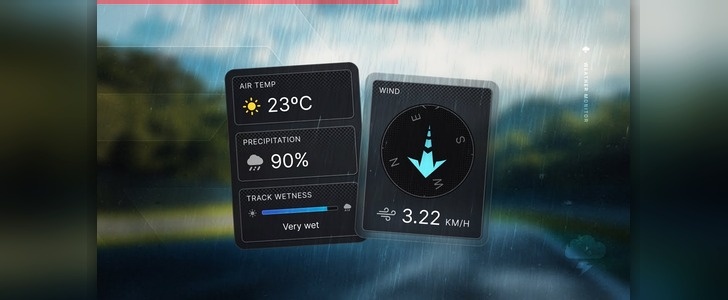
What it does
Why it’s useful
- Quick visibility of conditions without opening extra in-game menus.
- Helps decide slicks vs wets and when to pit during changing weather.
- Great for endurance, leagues, and any race with dynamic conditions.
Best mindset
- Use it for planning, not constant staring.
- Check it on straights or when safe.
- Pairs well with Fuel Calculator and Relative for strong “strategy + awareness” layouts.
Best time to use
- Practice: learn how your sim behaves with weather changes.
- Qualifying: time runs around rain windows and track temperature shifts.
- Race: watch for rain risk and react before everyone else.
- Endurance: it becomes a core overlay for decision making.
Quick setup
- Enable Weather Monitor in RaceLab → Overlays.
- Place it where it won’t block driving references (often top-left or top-right).
- Resize to be readable at a glance.
- Confirm it updates in a session that has weather enabled in the sim.
Tip: Keep Weather Monitor in a consistent corner across all layouts. Your brain learns where to glance.
How to use it for strategy (simple examples)
Rain incoming
- If rain risk is rising, avoid pitting too early for slicks.
- If the field pits for wets too soon, you can gain time staying out until it’s actually needed.
- Combine with track wetness/conditions to judge grip loss.
Track temperature shifts
- Cooler track can mean more grip but slower tyre warmup.
- Warmer track can mean more tyre wear and higher pressures.
- Use this info to adjust driving style and pit timing.
Key settings (keep it clean)
Readability
- Opacity: slightly transparent reduces distraction.
- Scale: just big enough to read quickly.
- Units: use °C/°F whichever matches your sim + preference.
What to show
- Show only what you actually use (less clutter).
- If supported, keep rain probability/conditions visible.
- Hide extra lines if you never look at them.
Placement tips
- Top corners are best (least conflict with driving view).
- Don’t place it near braking markers, apexes, or mirror focus areas.
Common mistake
- Making it too big and checking it too often.
- Fix: shrink it and treat it like a quick “strategy glance”.
VR positioning
- Keep it in an upper corner so it’s readable without moving your head.
- If it feels too close, reduce scale first.
- Don’t place it on the horizon line — it steals focus.
Troubleshooting
No data / doesn’t change
- Make sure the sim/session actually has weather enabled.
- Confirm the correct sim is selected and telemetry is connected.
- Toggle the overlay off/on after the session loads.
Too distracting
- Shrink it.
- Increase transparency.
- Move it farther into a top corner.
Sources & References
[1]
Weather Monitor Overlay screenshot (RaceLab UI image provided for this support site).
↩ back