


Radar Overlay (Free to Use)
A proximity “radar” that shows cars around you so you can avoid side contact and unsafe merges. [1]
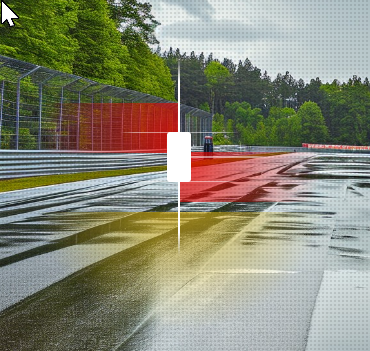
What it does
Situational awareness
- Shows where nearby cars are relative to you (left/right/behind/ahead).
- Helps you avoid “door bashes” when someone is in your blind spot.
- Especially useful when mirrors are blocked (A-pillars), low FOV, or heavy traffic.
What it’s NOT
- Not a “who is faster” tool — it’s for space awareness.
- Not a replacement for mirrors — it supports them.
- Not something to stare at constantly — quick glances only.
Best time to use
- Race starts & restarts: instant “who’s alongside” awareness.
- Side-by-side battles: confirms overlap before turn-in.
- Rejoins / pit exit: reduces the risk of merging into traffic.
- Multiclass: helps you sense a faster class arriving beside you.
Quick setup
- Enable Radar in RaceLab → Overlays.
- Place it near your peripheral vision (common: lower-centre or lower-left).
- Resize so you can read it with a quick glance (don’t make it huge).
- Join a session with other cars and confirm markers move correctly.
Placement rule (works for almost everyone)
- Radar should never cover apexes, braking markers, or turn-in points.
- If you notice it too much, it’s too big or too central.
Key settings (the ones that matter)
Range / distance
- Keep it tight for racing (less clutter, clearer decisions).
- Too wide = lots of dots you don’t need; too tight = late warnings.
Size & clarity
- Scale: just big enough to see overlap.
- Opacity: raise transparency if it feels distracting.
Colors / class awareness
- If class/team coloring exists for your sim, enable it (great for multiclass).
- Keep contrast high so you can read it instantly.
“I keep watching it” fix
- Shrink it slightly.
- Move it further toward a corner of your view.
- Increase transparency a bit.
VR positioning (quick rule)
- Readable with a glance — not a head turn.
- If it feels too “in your face”, reduce scale first.
- Keep it low and slightly to one side so it doesn’t compete with the horizon.
Troubleshooting
No cars showing
- Confirm the correct sim/game is selected and running.
- Test with AI/online session that definitely has cars nearby.
- Toggle Radar off/on once after the session fully loads.
Looks wrong / hard to interpret
- Reduce range first (wide ranges feel “busy”).
- Resize smaller and move it further into the periphery.
- If Windows display scaling is unusual, try 100% scaling as a test.
Sources & References
[1]
Radar Overlay screenshot (RaceLab UI image provided for this support site).
↩ back