


Relative Overlay (Free to Use)
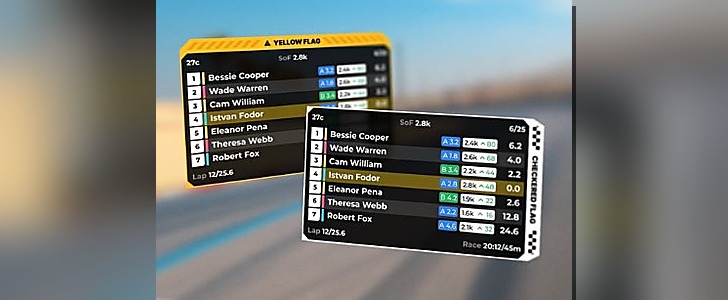
Shows the cars around you (ahead/behind) with gaps and key status, so you can manage traffic, pit cycles, and restarts. [1]
✅ Best for racing + restarts
✅ Great for traffic
✅ Multiclass friendly
✅ Free to use
What it does
Instant awareness
- Shows drivers around you (ahead/behind) in a clean list.
- Highlights your own row so you always know where you sit.
- Gaps update as cars close, pit, or go “OUT”.
Why it’s useful
- Better decisions in traffic (who’s actually close enough to fight you).
- Safer rejoins/merges after a slide or pit exit.
- Multiclass: fewer surprises from faster classes arriving quickly.
Best times to use it
- Race starts & restarts: know who’s alongside / about to send it.
- Traffic & lapping: judge closing speed before you commit to a line.
- Pit cycles: watch who’s jumping you during stops and exits.
- Defending: use the gap trend to decide “defend now” vs “save tyres”.
Quick setup
- Start your sim and enter a session with other cars (AI or online).
- Open RaceLab → Overlays → enable Relative.
- Position it near your eyeline (glanceable, not blocking braking markers).
- Resize so you can read gaps instantly (names + gap + status are the priority).
- Do a short test lap in traffic to confirm it updates live.
VR note (simple rule)
- Keep it close to your natural glance direction (don’t force head turns).
- If it feels “too big”, reduce scale first, then move it slightly closer to centre.
Key settings to check (the ones that matter)
Rows / range
- Cars ahead / behind: enough to cover battles (common: 3–6 each way).
- Highlight me: keep your own row clearly highlighted.
Gap display
- Time gap vs interval: use whichever makes quickest sense.
- Precision: more decimals for close racing, less for endurance.
Status indicators
- Pit / OUT icons: keep enabled so you understand why a name is “dropping”.
- Class colour (if available): very helpful for multiclass awareness.
Look & focus
- Opacity: raise transparency if it blocks corner entry.
- Row count: lowering rows is the fastest way to reduce clutter.
Pro tips (quick wins)
- Keep it narrow: readable names + gaps without turning into a full standings screen.
- In multiclass, glance at Relative before corners to avoid defending a car that isn’t actually a threat.
- If you’re getting distracted, reduce rows and simplify columns (keep gaps + status).
Troubleshooting
No cars / values frozen
- Make sure the correct sim/game is selected and running.
- Test in a session that definitely has other cars (AI or online).
- Toggle the overlay off/on once after the session fully loads.
Too much clutter
- Reduce cars ahead/behind.
- Increase transparency or move it slightly lower.
- Remove less-useful columns first (keep gaps + status).
Sources & References•
[1] Relative Overlay preview screenshot used on this page (RaceLab UI image provided for this site).
↩ back